-
Menu
On this page
Opening the Menu
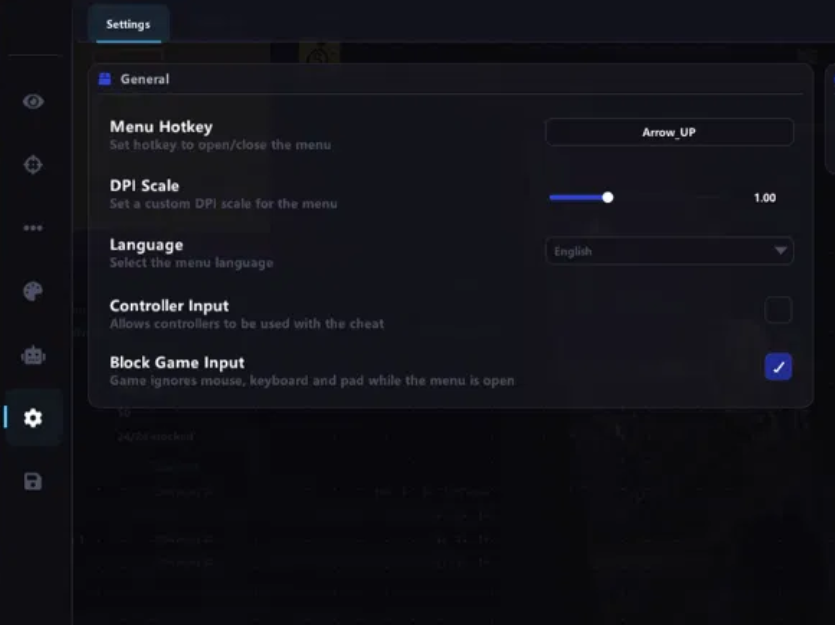
Press UP ARROW to open and close the menu. To change it, go to Settings > Menu Hotkey, click the box and press the new key.
No UP ARROW key?
If your keyboard has no arrow keys (laptops, 60% keyboards), use the Windows On-Screen Keyboard:
- Press Win + Ctrl + O, or search On-Screen Keyboard in the Start menu.
- Click the up arrow on the on-screen keyboard to open the menu.
- Go to Settings > Menu Hotkey and set a key you do have.
If the game grabs your mouse and you cannot click the on-screen keyboard, switch the game to windowed or borderless mode first.
Menu Layout
Most menus follow the same order down the left sidebar: ESP (visuals) first, then Aimbot, then Misc features, then Settings, with Configs at the bottom. Some products have extra tabs or fewer tabs, and the icons can differ between products.
Each sidebar tab has sub tabs along the top.
Using the Controls
Control How to use it Sliders Drag the handle, or click the number on the right and type an exact value. Double sliders Two handles on one slider set two values at once. The aimbot FOV slider works like this, see the Aimbot Guide. Dropdowns with + and - These let you pick more than one option (for example several bones or several item types). Open the dropdown and tick what you want. Selection dropdown (Players ESP) Switches between Enemy and Teammate. Each one has its own settings, so set up both. Color picker Click a palette icon to open it, pick your color, then click outside it to close. When a feature has two palette icons, each one colors a different part or state of that feature. Keybinds
To set a keybind, click its box. It will say Press any Key. Press the key or mouse button you want and it saves right away.
A box that already says Press any Key means no key is set, so that feature has no hotkey yet.
Name in the menu What it is Mouse 4 Side button on your mouse, usually the one closer to you (Back). Mouse 5 Side button on your mouse, usually the one further forward (Forward). If your mouse has no side buttons, do not use Mouse 4 or Mouse 5. Pick a keyboard key instead.
Enabling Controller Support

The menu supports controllers natively, but it is off by default.
- Go to the Settings tab.
- Tick Controller Input.
The Hotkey field in the aimbot tab will now accept controller input.
Loot Select
Some cheats have a Loot Select page that lets you choose exactly which items show up in Loot ESP. If yours has it, you will find it as a sub tab in the ESP section, or through the Filter option in the Loot tab.
Control What it does Search bar Type an item name to find it. Rarity buttons Shows only items of that rarity. The buttons match the rarities in your game. All shows every item. Green check Selects every item currently shown. Red X Deselects every item currently shown. Clicking an item Turns that single item on or off. Tip: to show only high value loot, press the red X with All selected to clear everything. Then click the highest rarity button and press the green check, and repeat for any other rarities you want.
Configs
Configs are saved on klar.gg servers, not on your PC. Your configs stay with your account, so they are still there after a reinstall or on a new computer.
To save your current settings, type a name in the box at the bottom of the Configs tab and click Create.
To share a config, get its share code and send it to whoever you want. Anyone who pastes that code into the box and clicks Import gets your config.