-
Unreal Engine Crashes
On this page
About Unreal Engine Crashes
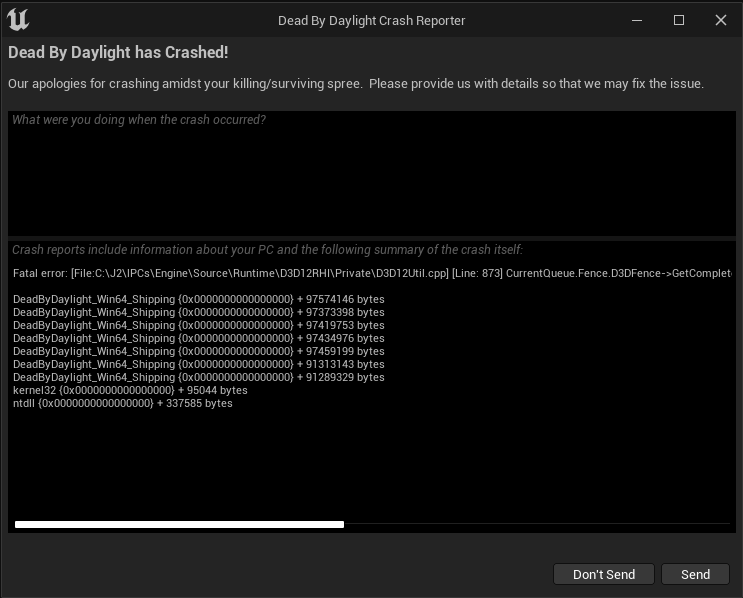
Many games run on Unreal Engine (UE). When one crashes, you usually get a crash reporter window like the one below. These crashes are almost always caused by another program injecting into the game, not by our software itself.

A typical Unreal Engine crash reporter. The exact wording changes between games.
Work through the fixes below in order and launch again after each one.
1. Remove ReShade
ReShade is the number one cause of these crashes. It injects a file into the game that clashes with the game and with our software.
- If you installed ReShade, run its uninstaller, or delete the ReShade files from the game's folder
- Verify or repair the game files afterwards through Steam or your launcher to make sure nothing is left behind.
2. Turn Off Overlays
In-game overlays inject into the game the same way and often cause UE crashes. Turn off every overlay you have, then launch again:
- Discord: Settings > Game Overlay > turn off Enable in-game overlay.
- Steam: Settings > In-Game> turn off the Steam Overlay.
- NVIDIA: Turn off the overlay in GeForce Experience or the NVIDIA App.
- Xbox Game Bar: Windows Settings > Gaming > Game Bar > turn it off.
- Others: MSI Afterburner / RivaTuner (RTSS), Razer, Logitech, and any FPS counter or recording overlay.
If it works after this, you can turn overlays back on one at a time to find the one that caused it, and leave that one off.
3. Send Us a Memory Dump
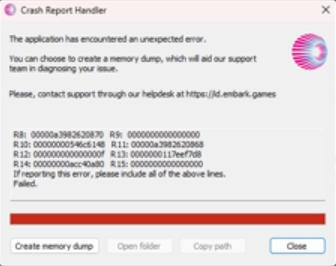
If the crashes continue after removing ReShade and overlays, the crash window can save a file that tells us exactly what happened. Some games call this a crash handler or crash report handler.
A crash handler with a memory dump option. Buttons and wording vary by game.
- When the crash window appears, click Create memory dump (or Save dump, depending on the game).
- Note where it saves the file. Every game stores dumps in a different place. If it does not tell you, search the web for "[game name] crash dump location".
- Open a support ticket and attach that dump file along with a screenshot of the error report.
Some Unreal Engine crashes don't have the option to create a memory dump. If this is your case let us know if the ticket. If you get the Unreal Engine crash report that looks like the first image, copy/paste the text in the bottom half of the window instead of a memory dump.
How to Report a Crash to Support
To help us fix it fast, include all of this in your ticket:
- The game name.
- A screenshot of the crash window, showing the full error text.
- The memory dump file from the step above, if you have one.
- Which fixes you have already tried (ReShade, overlays).